People, companies and contractors
The four roles, the People and Companies registers, contractor bookings and payment requests, and how a person leaves.
Everyone the studio deals with is a person in the People register. A person may belong to one or more companies, and may hold a login. What a login can see is decided by its role.
The four roles
| Role | What they see |
|---|---|
| Admin | Everything: every company, project, invoice and cost, plus settings, billing and access. A studio owner is an admin who can also grant admin and invite people in. |
| Team | The studio's work: every project, its tasks, the timeline, the timer and the booking schedule, plus their own bookings to add. Not the commercials, and never a booking's money. |
| Contractor | Their own bookings, tasks, timeline and timer, and a page to request payment. |
| Client | Their company's projects past scoping, their own tasks, proposals to sign and invoices to pay. |
A login holds one role. Change it on the Accounts page, under Admin in the rail, in the Access column.
Add a person
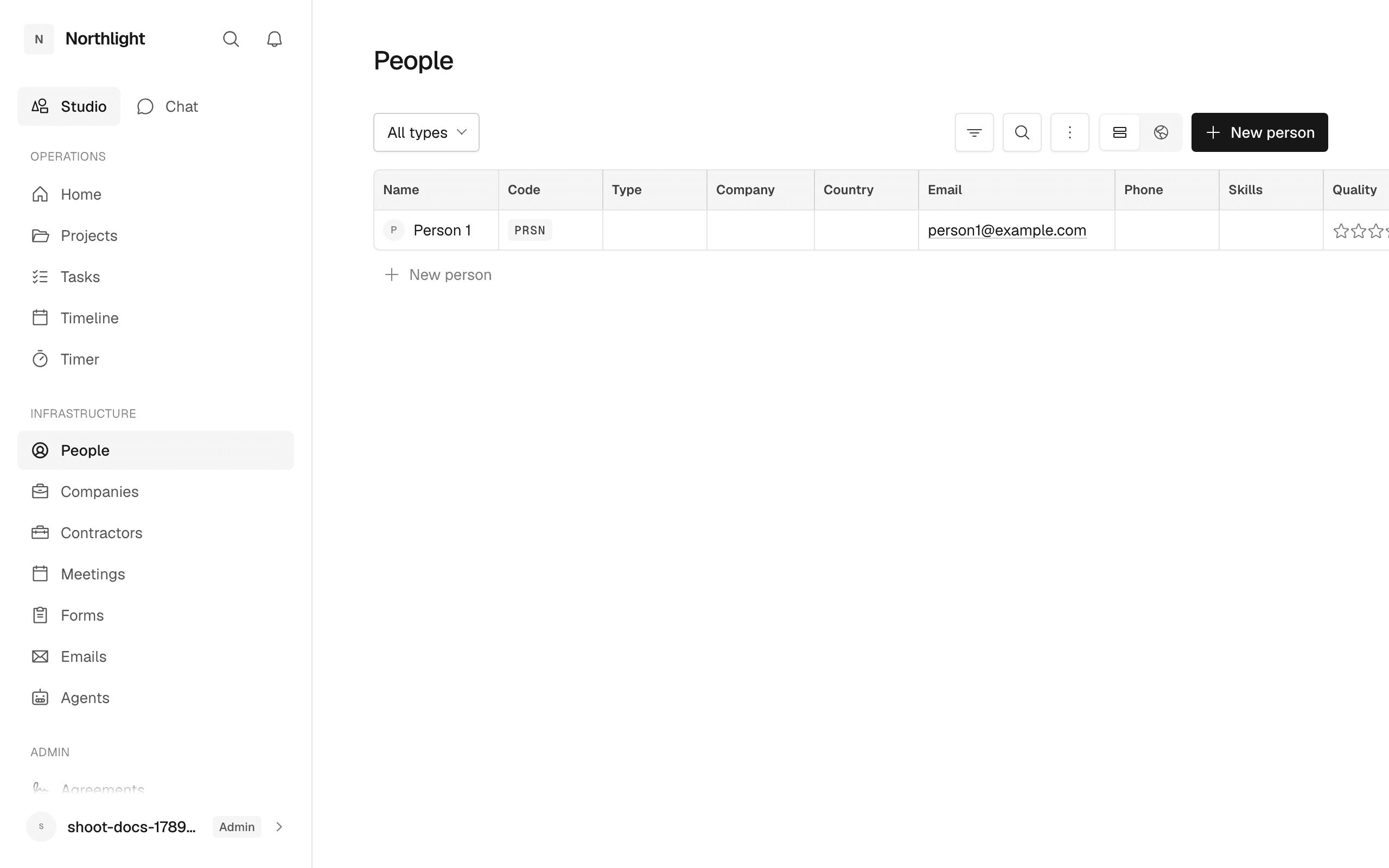
Open People and press New person: a name, an optional email and phone, a company and one or more types. Types (Team, Freelancer, Client contact, Lead or Supplier) describe who the person is to the studio; they do not grant a login. Tags are free labels of your own, shared with companies. Leave the company blank for a lead or a freelancer who is not attached to a customer.
Link a person to a company
A person can belong to several companies. On the person's record, or in the Company column of the grid, use Attach company. On a company's People tab, Attach people links someone already in the register and New person adds one there. Detaching removes the link only.
Add a company
Open Companies and press New company: a name, an optional email and a Relationship: Prospect, Client, Past client, Partner, Supplier or Other. A company can hold several at once, say Client and Supplier; add more on its record. Add an Industry from the fixed list and any Tags of your own. A company becomes a Client when a proposal is signed or an invoice is issued, and stops being a Prospect; its other relationships stay as they are.
Give someone a login
Two controls, both on the Accounts page:
- Give access is for a client or contractor who already has a contact record. Pick the contact, enter the email and choose whether to Send them an email. It is also in the ⋮ menu on the People grid.
- Invite to studio brings a colleague in as Team or Admin. Only an owner can use it. No email is sent: the dialog shows a join link once, and you pass it on. Nothing is granted until they open it and sign in as that address.
Bookings
A booking holds a person on a project for some dates. A contractor is a person typed Freelancer or Supplier; a team member is a person typed Team. Set the type on the People page and they can be booked on the Bookings page.
Book someone
Open Bookings and press New booking. Pick the person, the project (or Studio for the studio's own work), a status, a fee basis and the dates. The fee basis decides the numbers: Day takes days and a day rate, Hourly takes hours and an hourly rate, Fixed takes a fixed fee, each with a currency. Salaried is a team member's booking: days if you like, no fee and no currency, and it is never a project cost. A booking is Provisional, Confirmed or Cancelled, and only a confirmed one with a fee counts toward the project's cost. Every contractor booking has an assignment page the contractor can open, which reads live from the booking.
Team members see the schedule of every booking, who is held where and when, and never its fee, rate, currency or amount. They can add, change or remove their own salaried bookings. Only an admin books a contractor or a colleague.
Agreements
Contractor agreements, NDAs and release forms are raised on the Contracts page, Agreements tab, and signed through a private link. The Onboarding pack on a contractor's Overview shows whether they can start. See Agreements.
Payment requests
A contractor sends the studio their invoice, then records it on their Request payment page against a confirmed booking: the amount, their invoice number and what it covers. The request lands on the Finance page, Payment requests tab, under Waiting on you. There you Approve it, Decline it with a reason the contractor sees, or Mark paid. Nothing on either page moves money.
Deactivate a person
Right-click a person in the grid and choose Deactivate. Everything they did stays; they are offered nowhere new, and their login has no access to this studio. Reactivate restores it. You cannot deactivate yourself or the last owner.
Erase a person
For a request under data protection law. On the person's Profile tab, press Erase, type their name and press Erase permanently. Their name, contact details, notes, links and picture are removed and the record becomes a pseudonym. Time, tasks, comments, bookings, agreements and invoices stay under that pseudonym. Their login is locked. This cannot be undone.
View as another role
An admin can draw the interface a Team member, Contractor or Client gets: Settings, Account, View as. A band across the top of every page names the role, and Exit preview takes you back. Only the chrome changes; the records are still yours.
In the app
/admin/people/admin/companies/admin/accounts/bookings/admin/contracts/admin/costs/payments/account