Invoices and finance
Raise, issue and settle invoices, keep your bank details and terms, and watch subscriptions, expenses, payment requests and margin.
Money lives under Finance in the rail (/admin/costs), in five tabs: Invoices, Expenses, Subscriptions, Payment requests and Reports.
Create a draft
On the Invoices tab press New invoice, pick the Project and the Currency (prefilled from the project's agreed fee) and press Create draft. A draft has no number and is invisible to the client until issued, so an abandoned draft leaves no gap.
Build the invoice
The record has tabs: Status, Invoice, Payments (once issued) and Chat. The Invoice tab opens with the From, Bill to and Payment blocks, marked Preview on a draft and frozen at issue.
Lines is a grid: click a cell to edit it, or press New line. A line has a Description, Qty and Unit price. Type is Free text or one of the project's deliverables. Agreement line, shown when the project has an accepted proposal, records which agreed line the charge answers to.
Bill time adds one line for the unbilled hours in a range: set From, To (inclusive) and an Hourly rate, then press Add time line. Each entry is rounded up to the next 15 minutes and marked billed.
Under VAT, tick Charge VAT on this invoice and type the Rate (%). VAT is never inferred. The VAT note prints as typed, for example "No VAT charged."
Issue it
On the Status tab press Issue invoice, then Issue it. Issuing cannot be undone: it allocates the next number, sets the issued date to today and the due date to today plus your payment terms, freezes the document, writes the PDF and moves the status to Sent, which the client can see. A mistake is cancelled and reissued; the cancelled one keeps its number.
See whether they opened it
An issued invoice shows Never opened, or the visits and when, beside its status on the record, in the Client opened column on Invoices, and on its row under Waiting on them on Home. A visit is one browser session of the client reading the invoice signed in. The studio's own looks never count, and it never says which person at the client.
Move the status
| Status | Meaning |
|---|---|
| Draft | Being built. No number. |
| Sent | Issued and awaiting payment. |
| Paid | Settled, stamped with today's date. |
| Unpaid | Never answered by the client. |
| Cancelled | Withdrawn; keeps its number. |
Overdue is not a status: a Sent invoice past its due date is tagged overdue wherever it appears. After issue the Status tab shows the Issued, Due and Paid dates and a Move to row with a button per status.
On an overdue invoice whose billing contact has an email, Send reminder on the Status tab (or in the row menu on Invoices) emails them a reminder with the PDF attached, after a confirm naming who and how much. It is only ever sent by hand, up to three a day, and Last reminded shows when the last one went.
Record a payment
On the Payments tab press Record payment and enter the Amount (prefilled with what is outstanding), Date received, Method and an optional Reference. Invoice total, Recorded and Outstanding are summed from the rows. Recording never changes the status: once the payments reach the total, a notice reads Fully covered (or Overpaid) and offers Mark paid.
Read the document
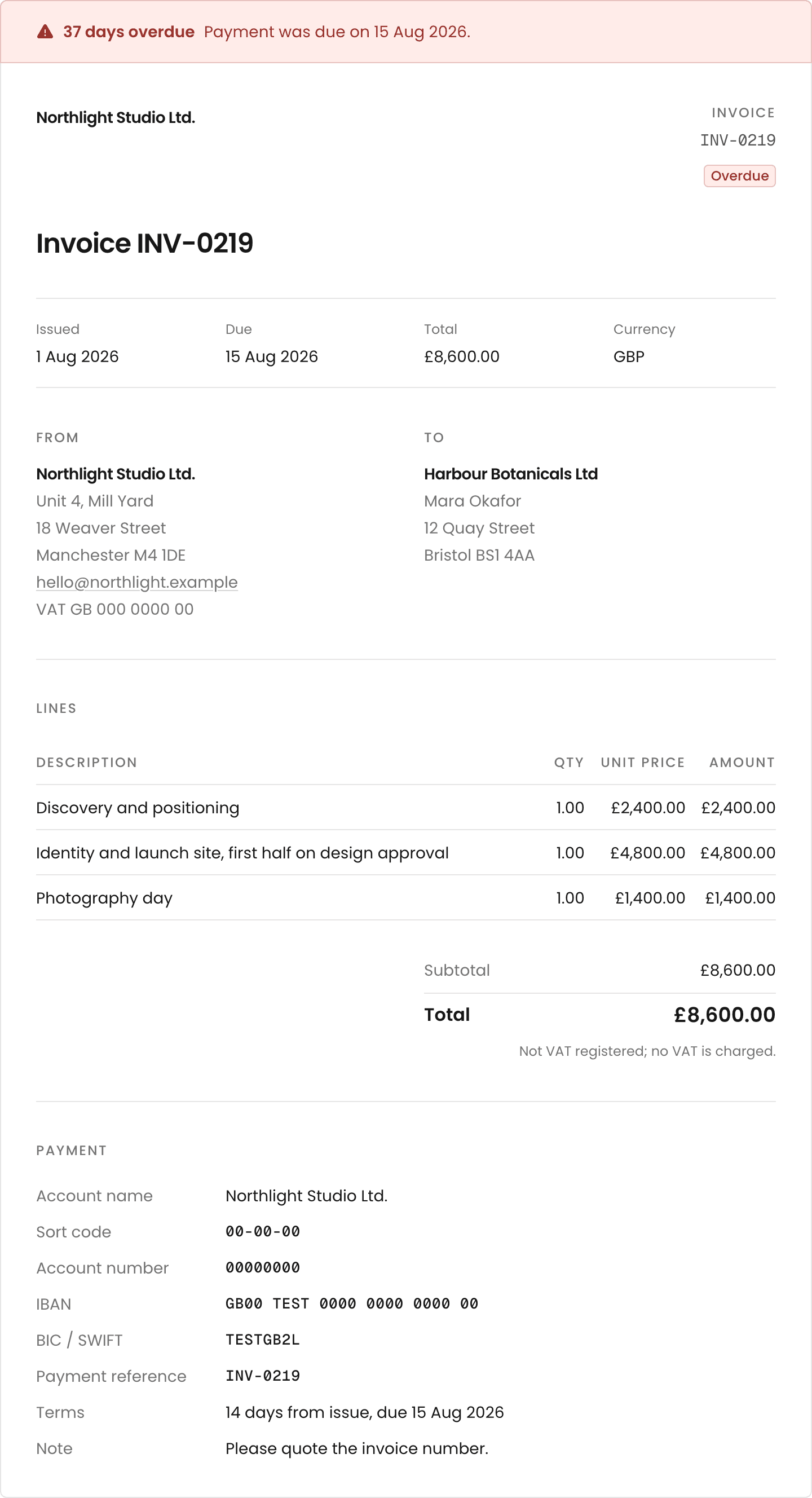
Press Document to open the invoice as the client sees it (/invoices/<id>): the dates and total, From and To, the lines and totals, and a Payment section listing Account name, Sort code, Account number, IBAN, BIC / SWIFT, Payment reference (the invoice number), Terms such as "14 days from issue, due 3 Oct 2026" and your payment note, each with a copy button.
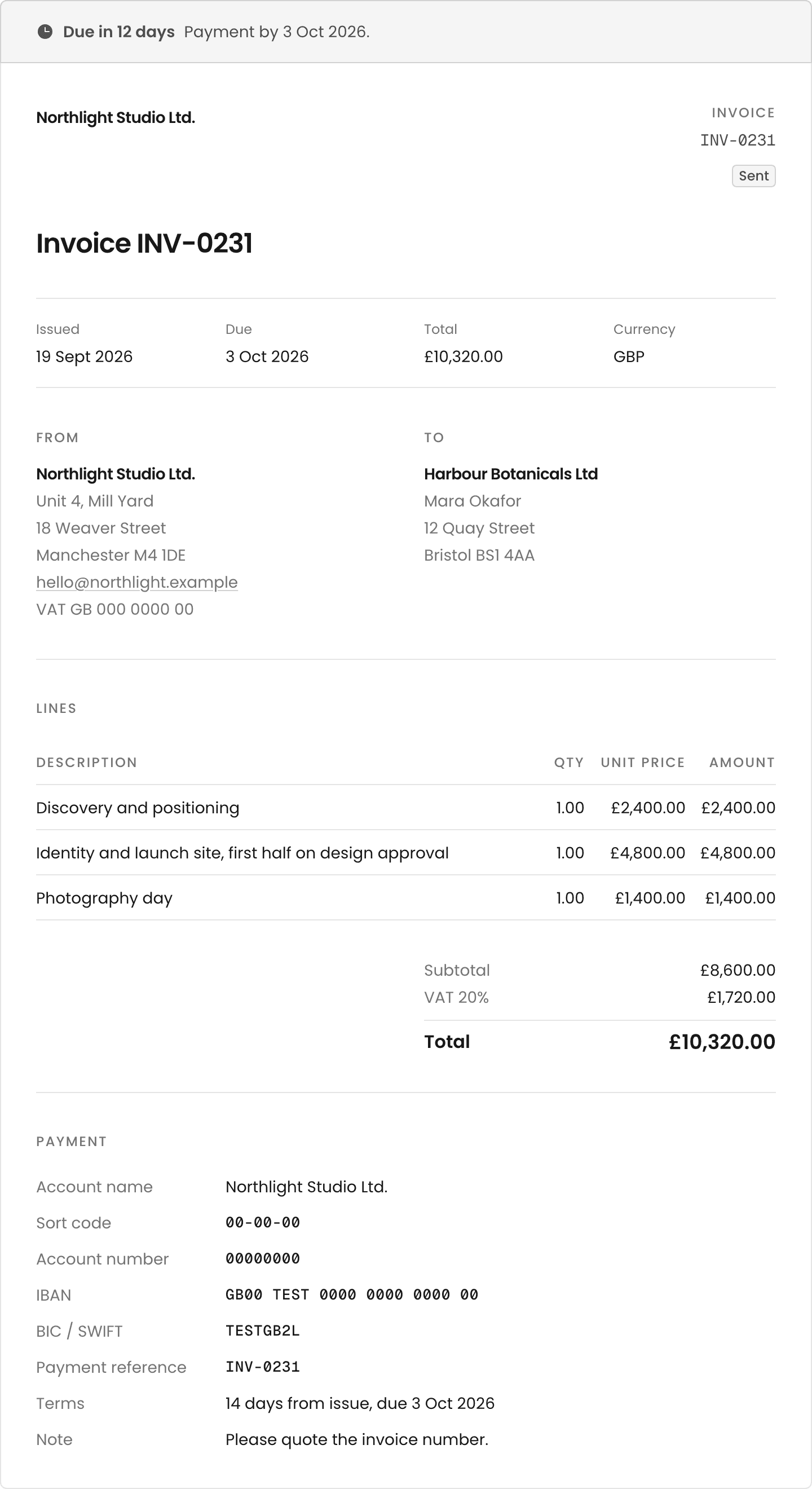
An overdue invoice opens with a band reading N days overdue; a paid one with Paid and "Received on ... Thank you." A paid or cancelled invoice prints no bank details. PDF downloads the document written at issue, unchanged since. Clients see it from Your invoices (/invoices); drafts never appear there.
Set your payment details
Open Studio settings, Business details (/admin/settings/business). The Payment section holds Account name, Sort code, Account number, IBAN, BIC / SWIFT, Payment terms (days) and Payment note. Terms set the due date at issue; blank means 30 days. Every value is frozen onto each invoice at issue.
Track subscriptions and burn
The Subscriptions tab is the register of recurring costs. Press New cost and fill the row: Cost, Vendor, Category, Amount, Currency, Billing (monthly to annually), Renews, Started and Ends. A cost renewing within 14 days shows Soon. To cancel one, use End it today in its row menu. Monthly burn on the Reports tab totals live costs per currency.
File expenses and read the ledger
The Expenses tab lists what was spent: Description, Charged to, Vendor, Amount, Currency, Date, Category and Rebilled. Press New expense to add one; a project's Finance, Expenses pane has its own form with a Rebill to the client tick. Rebilled expenses go back out on an invoice; absorbed ones come off the margin.
The project's Finance, Ledger pane sets money against the agreement: Against the agreement (with a Bill button per line), Unallocated, Off the agreement and Done, not billed.
Answer payment requests
A contractor's rail has Request payment (/payments), where they log their invoice against a confirmed booking: Amount, Your invoice number and What it covers. Requests land on the Payment requests tab under Waiting on you. Press Approve, Decline with a reason, or Mark paid.
Read the reports
The Reports tab shows time, cost and margin by project for a date range: Project, Basis, Hours, Cost, Quoted, Margin and Margin %, then totals by currency, charts, Monthly burn and Forecast. The report (action margin) tool gives an agent the same table.
In the app
- /admin/costs: Finance
- /admin/invoices: the invoices register;
/admin/invoices/<id>is one invoice - /invoices: the client's list;
/invoices/<id>is the document - /admin/settings/business: bank details and payment terms
- /payments: a contractor's payment requests