Settings
The settings page, its Personal and Studio groups, and what each section controls.
Settings is a page of its own at /settings. The rail becomes the settings menu: Back, a search box, then the Personal and Studio groups, with the section you are reading in the main column. Personal settings belong to your login and everyone has them. Studio settings belong to the business and only an admin sees them. On a phone, /settings is the menu as a list and each section carries a way back to it.
Open settings
- Press your name at the foot of the rail, then Settings. This opens Account.
- Admins: press the studio mark at the top of the rail, then Studio settings. This opens Brand.
- Press
,on any page. - Each section has an address,
/settings/account,/settings/brandand so on, which the search box filters by name and by what the section holds (type "logo" to find Brand).
Leave settings
Back at the top of the menu, Esc or the browser's own Back all return to the page you came from, at the position you left it. Reading several sections does not add steps: one Back is enough.
Personal
Account
- Sign-in address: read only. Ask an admin to change it.
- Role: Admin, Team or Contractor. Not shown to a client.
- View as: admin only. Draws the interface a Team member, Contractor or Client gets. Your records are unchanged. A band across the top of every page names the role, with Exit preview beside it.
- Profile: your avatar, name, phone and contact email, held on your person record.
- Time zone: your home zone. The Timer shows and reads every time in it, on any device. Set from your device the first time you open the Timer. When your device is elsewhere, the Timer says so above the entries with a link back here.
- Weekly digest: admin only, on by default. Every Monday at eight in your morning (your time zone, or London), an email with last week's hours by person, money received and invoiced, what is late (the top of Home's Needs you), meetings to book and what is due this week. One copy per studio per week; untick to stop yours.
- Password: your current password, then the new one twice.
- Two-factor authentication: press Add authenticator, scan the code with an authenticator app, type the first six-digit code and press Turn on. To turn it off, type a fresh code and press Remove two-factor.
- Devices: the browsers that have signed in as you, newest first, with the device, the browser, the approximate location and when each was last seen. This device marks the one you are reading in. Clearing a browser's cookies makes it a new device. There is no remove action yet.
#### New device emails
The first time you sign in from a browser Millstone has not seen, including the very first one, Millstone emails your sign-in address: the account, how you signed in (password or email link), the approximate location and address, the device and browser, the time in your time zone, and a button to this page. If it was not you, change your password. At most one such email an hour. This email is built and held for now, so nothing is sent until it is switched on; the devices are recorded either way.
- Delete my account: removes your name, contact details, notes, links and picture from every studio you belong to and closes the login. Time, signed agreements, invoices and bookings are kept under a pseudonym. Type your sign-in address to confirm. There is no undo.
Calendar
Connect your Google Calendar so the app can see when you are busy and add bookings for you. Choose which calendar bookings go into and which calendars make you busy. Disconnect revokes the app's access at Google as well.
Connect AI agent
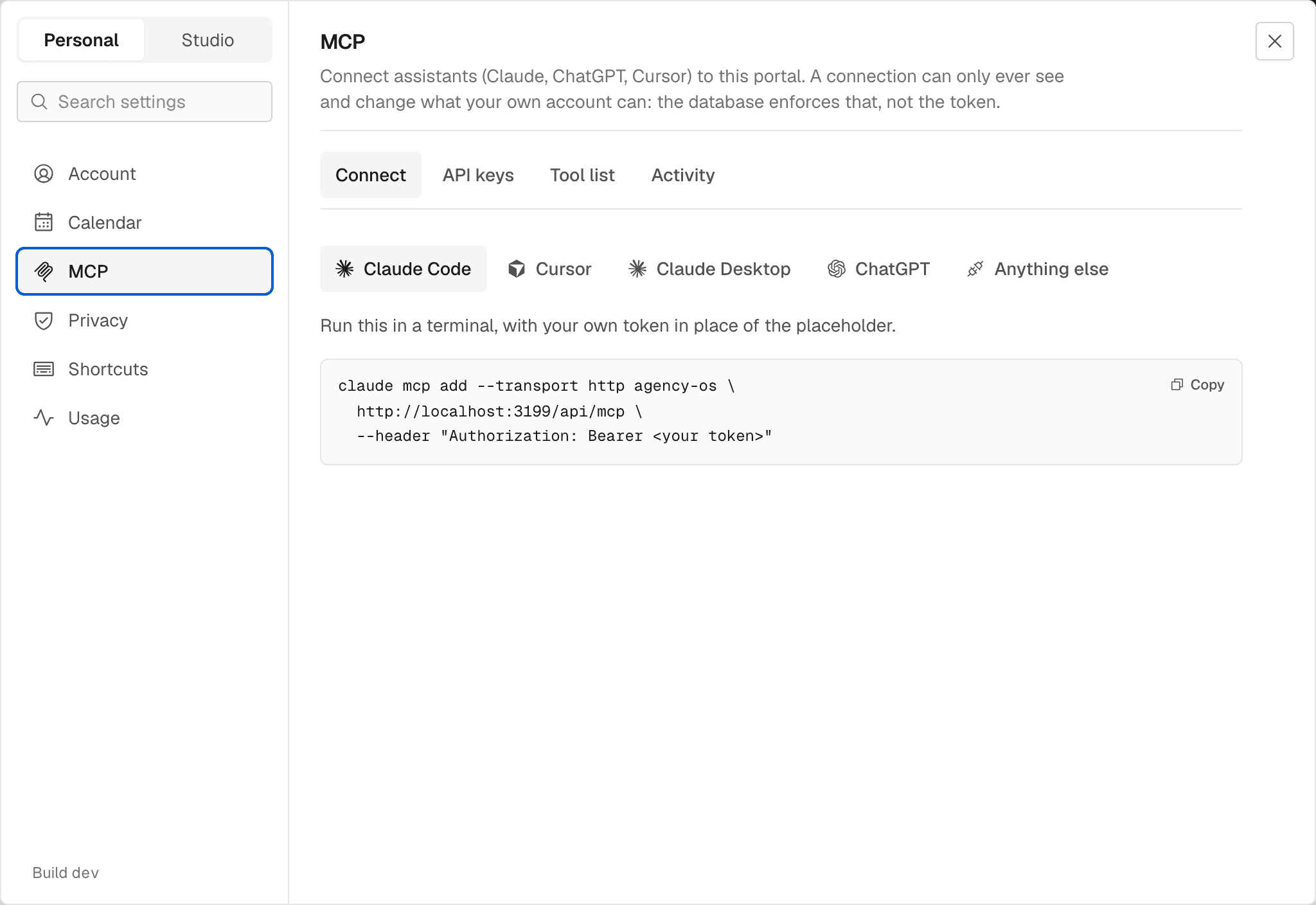
Connect an agent (Claude Code, Cursor, Claude Desktop or ChatGPT). Four tabs: Connect, API keys, Tool list and Activity. To make a key, give it a label, choose a lifetime (30 days to Never) and what it may reach (Standard or Full access), then press Create. The token is shown once. A key can only see and change what your own account can. See Agents and MCP.
Privacy, Shortcuts and My usage
Privacy holds one control, Analytics: whether this browser records which pages get used. Shortcuts lists every key the app takes; ? opens the same list anywhere. My usage shows your own working days.
Calendar, MCP, Shortcuts and My usage are not shown to clients.
Studio
Admin only.
Brand
What the portal looks like as your studio's, for everyone.
| Control | What it sets |
|---|---|
| Studio name | The name beside the mark in the sidebar and on documents. |
| Custom URL | Your web address, /s/your-name. A paid feature. |
| Icon | The square mark in the rail. Non-square images are cropped to centre. |
| Logo | The wide wordmark that heads proposals, agreements and invoices. |
| Accent colour | One brand colour, worn on both light and dark. |
| Interface tint | 0 to 100. Leans the app's greys toward the accent. Needs an accent first. |
| Roundness | None, Subtle, Medium or Full: how round buttons, fields, cards and chips are. Subtle is the standard. Hover a swatch to preview it. |
| Interface typeface | The face the whole site is set in. |
| Custom interface typeface | An uploaded woff2, woff, ttf or otf that overrides the typeface above. |
| Custom title typeface | An uploaded font for the page title only. |
Business details
The studio's details as printed on invoices, proposals and agreements: Business name, Address, Email, Phone, Website, VAT number and Who signs for the studio. Under Payment: Account name, Sort code, Account number, IBAN, BIC / SWIFT, Payment terms (days, blank means 30) and Payment note. Each document takes a copy when issued, so a change never alters one already sent.
Policies
The studio's Data protection, Data retention, Individual rights and Data incident policies, one row per policy headed by the version in force. Press New version to draft one; a row opens the version. Versions work as they do for the contract templates; see Agreements.
Transfer
Your studio's data in bulk, under two tabs. Export: tick the registers to include and press Download for them as CSV files in one ZIP, with a manifest. Import: bring companies, people or projects in from another tool's CSV. Pick what the file is a list of and choose the file. Exports from HubSpot, Pipedrive, Harvest, Xero, Google Contacts, Notion and Airtable are recognised and their columns matched for you; change the source if the guess is wrong, and open How to export for where to click in that tool. Check which column is which, review what every row would do, then commit. A job title on a person goes onto their link to the company. Recent imports lists past batches, and Take it back reverts a committed one, removing the records it created and leaving the ones it only updated. The same two tabs answer at /admin/export.
Portal usage
How the portal is used, in the section itself. Pick a period (7d, 30d, 90d or 12m) and an audience (Us, Team or Clients): the usage line, the totals with their change against the previous window, the most-fired events, the most-viewed pages and, for Clients, the companies seen, with the raw event log folded away at the bottom.
Billing
Your plan, when the trial ends or renews, and what you are using against its limits: people with access, projects and clients. Manage billing opens the payment method and invoices. An owner also sees the plan list.
Agent
How an outside agent's client and money actions are approved. Approvals is Hold in the inbox (the default: the action waits in the agent inbox and runs when somebody approves it there) or Confirm in chat (the agent shows a preview and runs it only when sent back the token that came with it). See Agents and MCP.
Contract templates
Contract templates are not in Settings. They live on the Contracts page, Templates tab. See Agreements.
Emails
Email templates are not in Settings either. Millstone runs one set of templates for every studio, with your studio's name and brand filled in. Wherever you email a client (sending a proposal, issuing or emailing an invoice, or Ask for feedback on a round), Preview email shows exactly what they will receive before it goes.
The one email the app sends on its own is the Weekly digest to admins, every Monday morning. Turn yours off under Account.
In the app
/settings/settings/account/settings/brand/settings/invoicing/admin/export/admin/billing/admin/contracts