What your client sees
The portal from your client's side, from the rail and home page to approvals, forms, bookings and how they get in.
A client signs in to the same portal as you and sees a smaller one. This page is written from their side.
Their rail
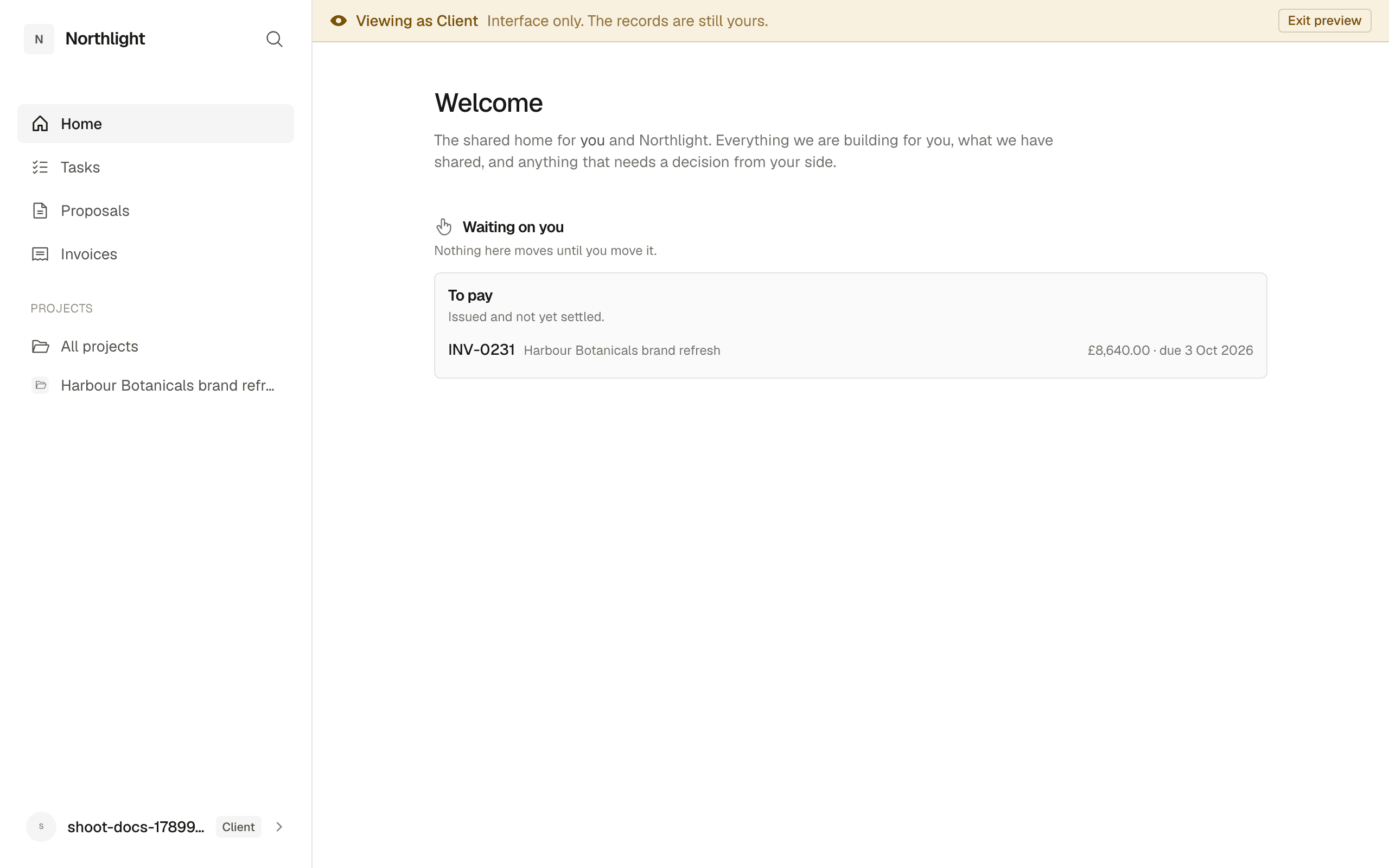
Your client's rail has Home, Tasks, Proposals and Invoices, then a Projects section with All projects and a row for each project they can read. There is no Timeline, no Timer and no studio settings. Your square mark sits beside your studio name at the top.
Their home
Home greets them by first name, Welcome, Sam, then: "The shared home for Acme and [your studio]. Everything we are building for you, what we have shared, and anything that needs a decision from your side."
Waiting on you comes first, with "Nothing here moves until you move it." It holds two blocks: To review, the deliverables you have marked delivered, and To pay, the invoices you have issued and not yet marked paid. An overdue invoice is tagged. When both are empty it reads Nothing needs you.
Recently shared lists the last six files you have sent over.
Their tasks
Tasks (/my) lists open tasks assigned to people at their company, on projects they can read. They see the task, its status, its due date and its project, as text. They cannot add, edit or reorder tasks, and never see the owner, the priority or your working notes. Unassigned tasks and the studio's own tasks stay hidden.
Their proposals and invoices
Your proposals (/proposals) has Outstanding, the proposals you have sent, and History. Columns: Reference, Project, Status, Total, Sent and Valid until. Opening one shows the document, but a sent proposal says "To sign, use the link in the email we sent to ...". Signing happens only through that emailed link.
Your invoices (/invoices) lists every invoice you have issued to their company, with a PDF link and the status. Drafts never appear. See Invoices and finance.
A project
A project opens on tabs: Overview, Deliverables, Tasks, Documents, People (when somebody at the studio is on the project), History and Chat.
- The overview is written in their terms: Where we are ("3 of 5 approved."), What is next, Needed from you and With you. There is no stage, no pipeline word and no progress bar.
- Deliverables lists each one with its files and comments. On a delivered deliverable they get Approve and Request changes. Approving asks "Anything to add? (optional)" and ends with Confirm approval. Requesting changes needs a reason under "What needs changing?" and ends with Send change request. The status moves to Approved or Changes requested.
- Documents lists their sent and signed proposals and issued invoices, each with Open, then Signed documents when there are any, then the other files with a Download button each. They cannot upload.
- Chat shows only the shared lane. Your internal lane is never sent to them.
Hidden from a client: the Reviews, Finance and Meetings tabs, the stage, the company chip and every internal comment.
Reviews and sign-off by link
When you hold a review, your client replies through a link at /r/<token> without signing in. The page is headed Over to you and says which review you showed them and when. Each deliverable on the table is a card naming its files. They press Approve or Ask for changes, which asks "What would you like changed?" and ends with Send. An answered card reads "You approved this on ..." or "You asked for changes on ...". A dead link shows This link is closed.
Forms
A form link (/f/<token>) opens with your wordmark, the form's title and a Start button. It shows one question per screen with a progress bar, and Send answers ends on Thank you. Questions can be short text, long text, email, phone, number, single choice, multiple choice or date. A used or closed link shows This link is not available.
Booking a meeting
A booking link (/m/<token>) shows the invitation's title, host and duration, then the free times with a time zone picker. Choosing a time holds it for ten minutes. They enter Your name and Your email, then press Confirm this meeting. The confirmation page (/m/booking/<key>) says Your meeting is booked, offers Join the video call when there is one, and is where they Move this meeting or Cancel this meeting.
The branding they see
Every link page and document carries your accent colour, tint, roundness and typeface, and your logo where the page has a header. Inside the portal the rail shows your square mark beside your studio name. Set these under Studio settings, Brand.
How a client gets in
A client's login hangs off their person record, not a studio membership. Open the person under People, or the company's People table (its Account column reads Invited or Not invited), press Invite, then Send invite. An email goes to them with a link to set up a login. Once in, they see the projects of every company they are linked to, at the stages you have made client-visible. Invite to studio on the Accounts page is different: it adds a team member or an admin, redeemed at /join.
In the app
- / and /my: the client's home and tasks
- /proposals, /invoices and /projects: their proposals, invoices and projects
/r/<token>,/f/<token>,/m/<token>and/m/booking/<key>: review, form and booking links- /admin/people: a person's record and the Invite button
- /admin/settings/brand: the branding they see