Getting started
The path from a new studio to its first proposal, in seven steps.
Seven steps take a new studio from requesting access to sending its first proposal. Each step says where the control is, so you can find it again later.
1. Request access and open your studio
Millstone is opening to a few studios at a time. Go to /signup, enter your studio name, website and email, and press Request access. You will hear by email when your place comes up. Every studio starts on a 14-day trial, and nothing is charged until you choose a plan.
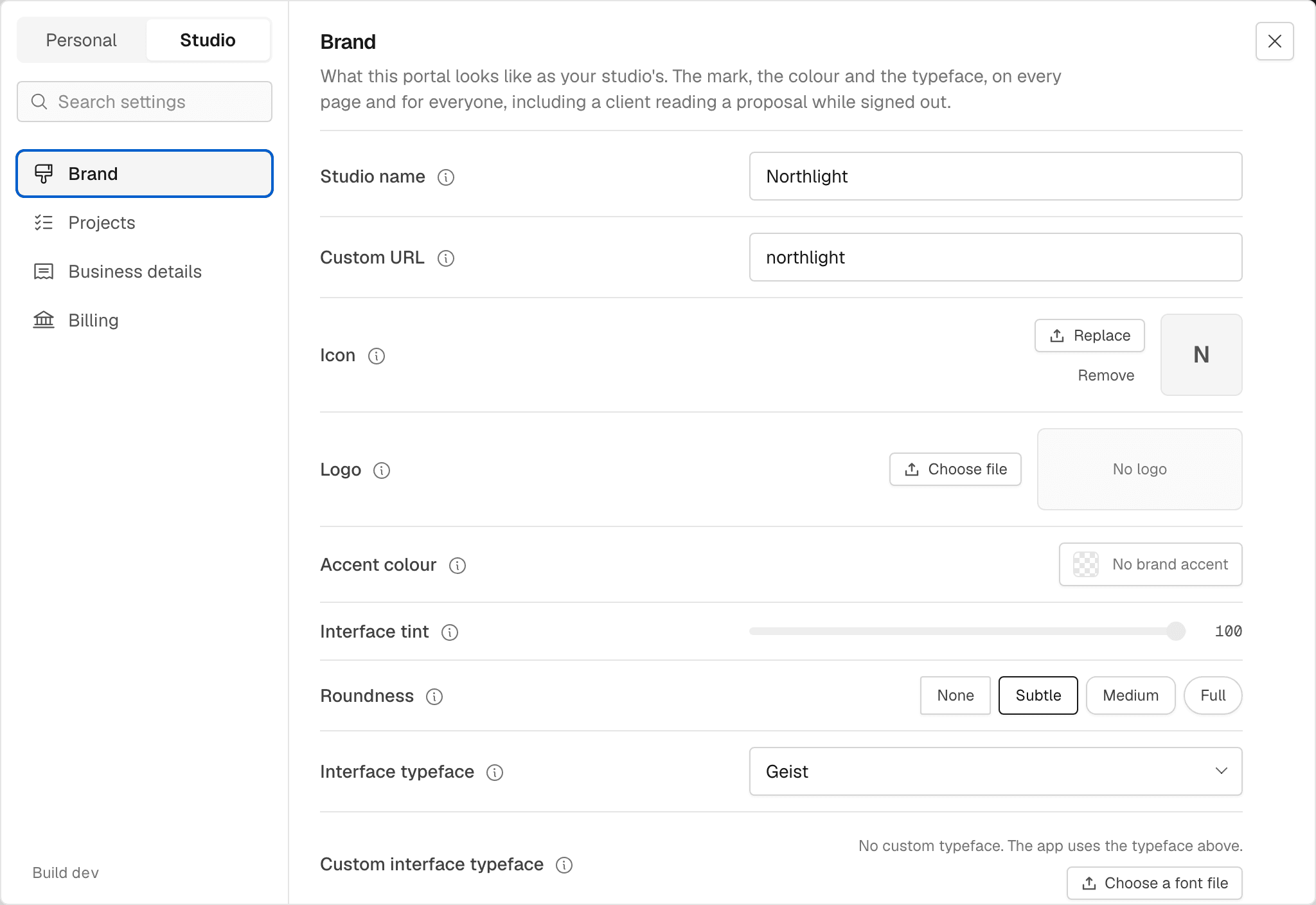
2. Brand it
Press the studio mark at the top of the rail, then Studio settings. The Brand pane opens. Upload an Icon (the square mark for the rail) and a Logo (the wide wordmark for documents). Pick an Accent colour, then set the Interface tint and Roundness. Choose an Interface typeface, or upload your own. Every control is described in Settings.
3. Enter your business and payment details
In Studio settings, open Business details. Fill in the business name, address, email, phone, website and VAT number, and who signs for the studio. Under Payment, add the bank account, payment terms and a payment note. Documents copy these details when they are issued, so set them before you send anything.
4. Invite the team
Open Accounts in the rail, under Admin. Press Invite to studio, enter an email address and choose what they join as: Team can do the work; Admin can also change settings, billing and who else has access. Only an owner can invite. No email is sent: the dialog shows a join link once, and you pass it on. Nothing is granted until they open it and sign in as that address. Every role is described in People, companies and contractors.
5. Add a client company and its people
Open Companies and press New company: a name, an optional email and a status. Then open People and press New person: a name, email, phone, the company they belong to and a type. A person with a company sits behind that company's projects, proposals and invoices. Leave the company blank for a lead or a freelancer who is not attached to a customer.
6. Create the first project
Open Projects and press New project. Choose the company, or leave it as the studio's own internal work. Name the project and pick its Stage: Lead, Scoping, Production, Delivery, Ongoing or Complete, with Parked for a job that has stopped. Clients only see projects past scoping. Open the project for its Overview, Deliverables, Tasks, Documents and People tabs, and see Projects for what each holds.
7. Send the first proposal
Open Contracts in the rail and raise one against the project. The proposal takes your business details and brand from steps 2 and 3, and the client signs it from a link. See Proposals.
In the app
/signup/admin/settings/brand/admin/settings/business/admin/accounts/admin/companies/admin/people/admin/projects/admin/contracts