Welcome
What Millstone is, who uses it, the five things it keeps, and where everything is.
Millstone is a studio OS: one place for a design studio's projects, proposals, agreements, invoices, people and companies, with a portal for clients and contractors and an MCP connection for agents. Every record belongs to one studio, and a login can belong to more than one.
Who uses it
Four roles, one per login:
- Admin runs the studio. Sees every company, project, invoice and cost, and changes settings, billing and who has access. A studio owner is an admin who can also grant admin and invite people into the studio.
- Team does the work. Sees every project, its tasks, the timeline, the timer and the booking schedule. Commercials (invoices, costs, rates and what a booking costs) are not shown.
- Contractor is booked by the studio for days. Sees their own bookings, tasks and timer, signs agreements through a private link and requests payment.
- Client is who the studio sells to. Sees their company's projects past scoping, their own tasks, proposals to sign and invoices to pay, and approves deliverables.
Five things it keeps
- The studio: its brand, business details, plan and members. See Settings.
- People and companies: everyone the studio deals with, and the organisations they belong to. See People, companies and contractors.
- Projects: the job, from lead to complete, moving through stages. See Projects.
- Deliverables: what the client receives and approves. Each is Not started, In progress, Delivered, Changes requested or Approved.
- Tasks: the work assigned to people, on a project or not. Each is Not started, In progress, In review, Blocked, Done or Cancelled.
Money follows the work: a proposal wins the project, an agreement binds it and an invoice bills it.
How a day runs
Home is a to-do list, not a dashboard. An admin's Home reads top to bottom by urgency:
- This week: who is booked on what, who is running a timer, and any unstaffed or over-committed work.
- Needs you: what will not move unless you move it, most urgent first. Contractors to pay, overdue invoices, unbilled retainers, invoices to send, expired proposals, proposals to send, revisions requested, rounds answered, reviews past their date, stages late, deliverables due this week and not started, meetings to book, booking links running out, bookings without an agreement, won but not started, documents expiring, timers left running, your overdue tasks, everyone else's overdue tasks and studio costs to review. Each row is one thing and opens where you deal with it; a list shows five and says how many more. The bell in the rail and the
activity(actionattention) agent tool read the same rules, so the three never disagree. - Deadlines: what has a date on it.
- Waiting on them: what is sitting with somebody else. Awaiting approval, unsigned proposals, unsigned agreements and unpaid invoices.
- Drifting and Gone quiet: live jobs that are slipping, and clients with no live job at all.
- Comments: what people have said about the things above.
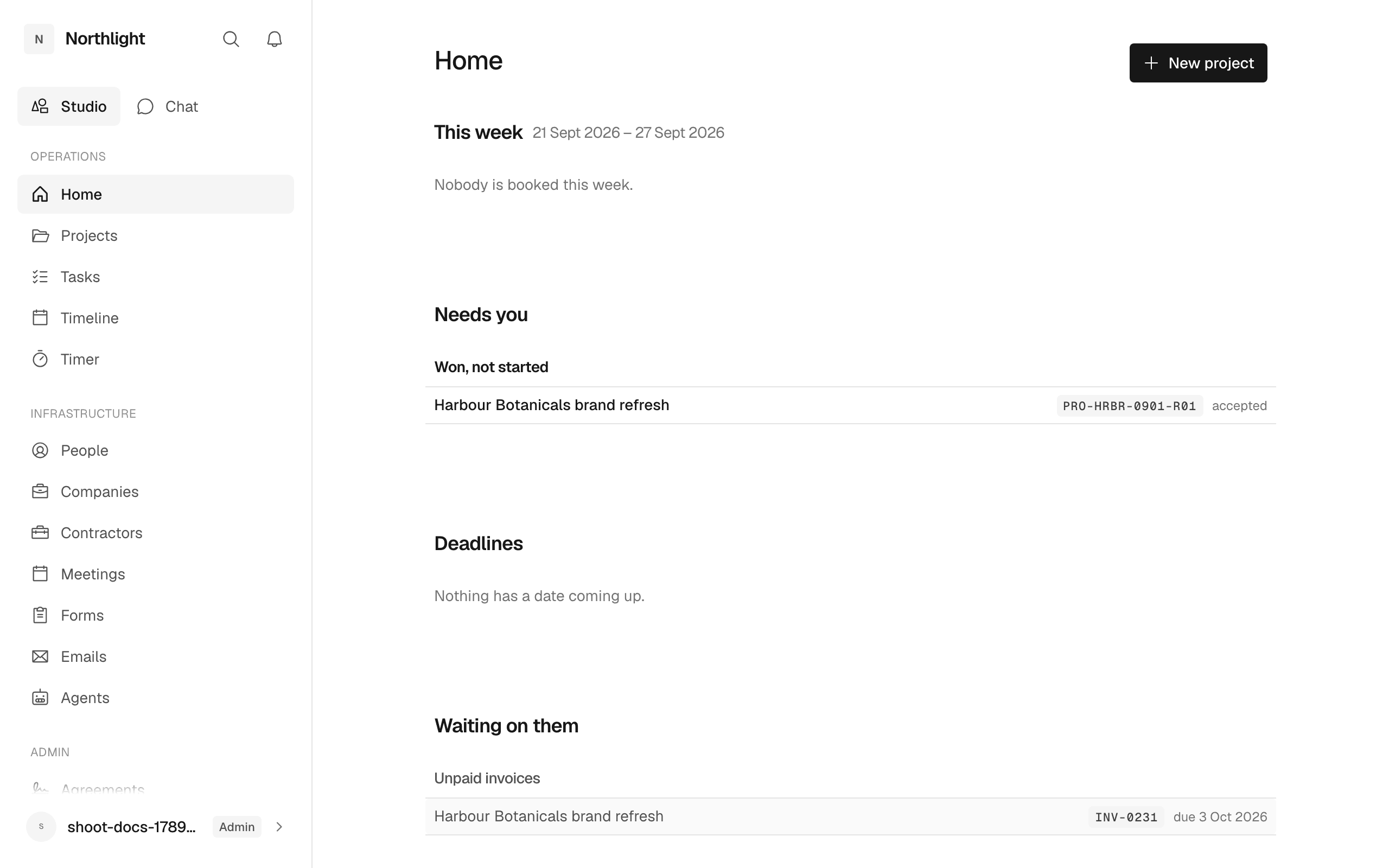
A team member's Home lists live projects, what is assigned to them, their own bookings and the latest notes. A contractor's shows their bookings, agreements, policies, release and details. A client's shows what is waiting on them, work to review and invoices to pay, and recently shared files.
Where things are
The rail on the left is the map. An admin's rail has three groups:
- Operations: Home, Projects, Tasks, Timeline, Bookings, Timer.
- Infrastructure: People, Companies, Meetings, Forms, Agents.
- Admin: Agreements, Proposals, Finance, Services, Accounts.
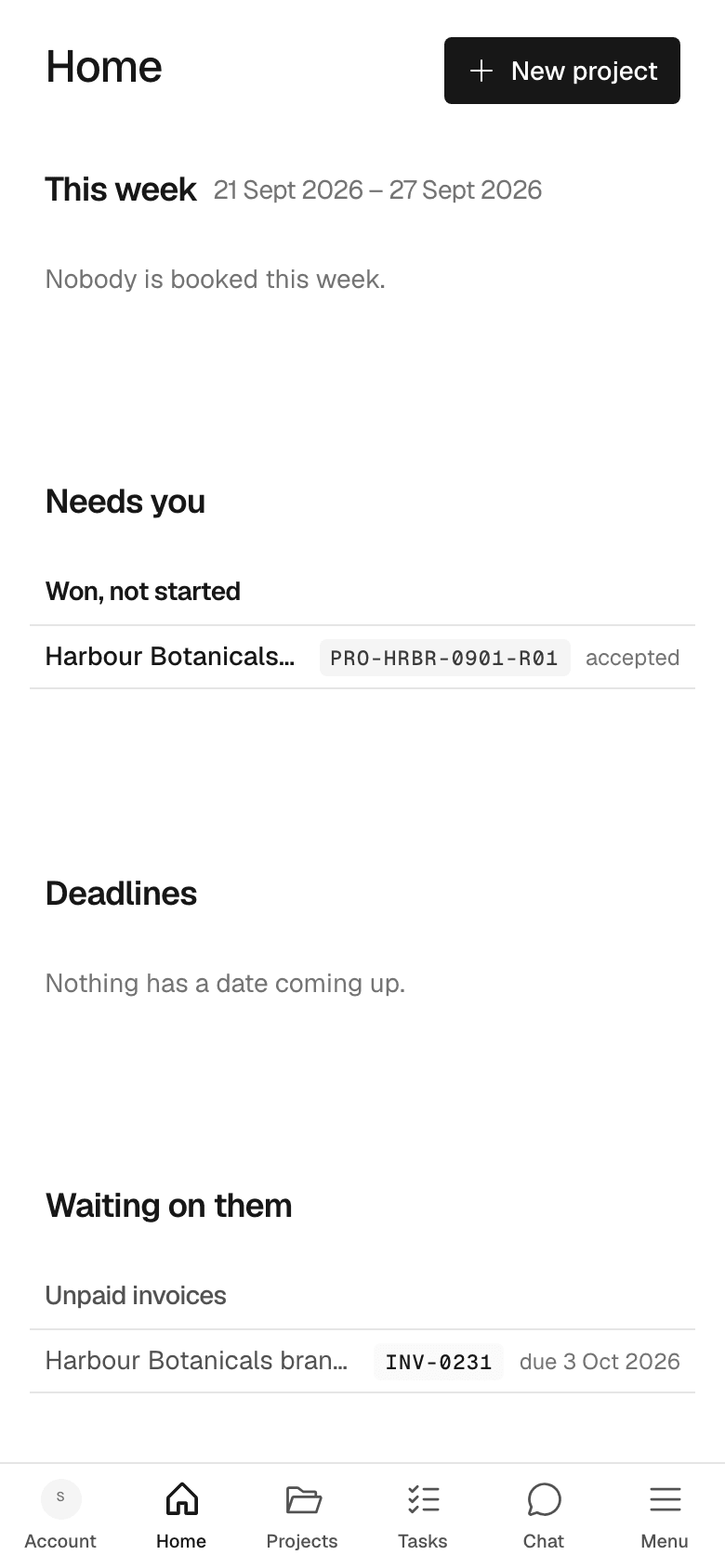
Finance holds Invoices, Expenses, Subscriptions, Payment requests and Reports as tabs. Contracts holds Proposals, Agreements and Templates. A team member's rail is Home, Projects, Timeline, Tasks, Bookings and Timer. A contractor's is Home, Projects, Tasks, Timeline, Timer and Request payment. A client's is Home, Tasks, Proposals, Invoices and their projects.
Settings opens from your name at the foot of the rail. ⌘K searches companies, people and projects. ? lists every shortcut. Agents connect through MCP, and clients read about their side in The client portal.
Next: Getting started.
In the app
//admin/projects/my/timeline/time/admin/costs/admin/contracts